Modifying & Archiving KPIs
This guide covers how you can modify existing KPIs to update their progress.
You can modify any element of a KPI after you have created it to update its progress, reflect the relevant RAG rating and even change the target if you needed to.
You can modify a KPI either via the KPI dashboard (as shown below), or when viewing your KPI list by clicking the 'Modify' button (you can view your KPI list by clicking the configuration option on your main KPI dashboard and selecting View All KPIs).
The quickest way is to click the cog icon alongside your KPI within the main KPI dashboard:
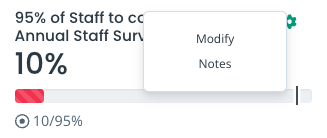
Click Modify to open the settings against your KPI and make any of the changes you require.
Any changes you make, including updating the progress, RAG rating and target, will be updated immediately after saving.
If you modify a Numerical KPI to assign a different report, the KPI will update to reflect the correct figure.
Adding Notes
You can also add notes to your KPIs via the dashboard. Simply click Notes and save your comment - the comment will list your username and the date/time you submitted the note for other users to view.
This may be useful if you would like to provide commentary when updating your KPIs to provide more context as to its progress and any changes you have made.
Archiving KPIs
You are able to archive KPIs when they have been completed and you are preparing the next set of KPIs to display.
You can do this by modifying your KPI - an Archived option will be available. Simply tick the box and submit to archive your KPI.
Archived KPIs will still be accessible and manageable via your KPI list, but will be hidden from the KPI widget and main KPI dashboard.
You can turn the Archive option off in future if you needed.
You also have the option to delete a KPI if needed, also available when viewing a KPI via the list view. This action is irreversible.
Updated on 3rd February 2026